How to Play the Google Minesweeper Game
If you’ve never played Minesweeper before, don’t worry. It’s easy to learn but hard to master. The goal is simple: uncover all the safe squares on the board without clicking on a mine. Each number you reveal tells you how many bombs are hidden in the surrounding 8 tiles. That’s your clue. Use logic and a bit of deduction to figure out where it’s safe to click next.
In Google Minesweeper, your first click is always safe. From there, it’s all about staying calm, reading the numbers and making smart choices. One wrong move and boom, game over.
How Do the Controls Work?
Google Minesweeper works on both desktop and touchscreen but the controls are slightly different depending on your device.
Desktop Controls:
- Left-click to dig (uncover a tile)
- Right-click to flag a suspected mine
- Middle-click (or click both left and right together) on a number to uncover the surrounding 8 tiles, but only if the correct number of flags are placed nearby
Touchscreen Controls:
- Tap a tile to bring up the action menu
- Choose between flag or dig
- This replaces right-click since mobile devices don’t have secondary mouse buttons
- After selecting an action, tap again to apply it
Alternative Touch Method:
Some players also use gesture-based controls on mobile. On supported devices or browsers, a double tap digs a tile, while a long press places a flag. This method isn’t always shown on screen but is commonly used by experienced players who prefer faster input.
It’s intuitive once you get the hang of it and it makes playing on phones just as precise as using a mouse.
What Are the Available Board Sizes?
Google Minesweeper offers different difficulty levels, but the actual board size depends on whether you play on desktop or on a touchscreen device.
Desktop and Larger Tablet Board Sizes (Fixed Layout):
On desktop and larger tablets, each difficulty uses a fixed grid size that does not change.
- Easy: 8×10 with a low mine count, ideal for beginners
- Medium: 14×18 with more mines and tighter spacing
- Hard: 20×24 with a dense layout for experienced players
Because the grid is fixed, patterns are consistent and muscle memory plays a bigger role when playing on these devices.
Mobile Board Sizes (Adaptive Layout):
On mobile devices, the board automatically adjusts to the screen size. Instead of using one fixed grid, the game fills the available space with tiles.
This means:
- The number of tiles can vary between devices
- The proportions of the board may differ between phones and smaller tablets
- Mine counts scale with the board size
Smaller phones show fewer tiles at once, while larger screens allow wider grids. The core rules stay the same, but the layout adapts to your device.
Each size changes how you approach the game. Smaller boards are quicker and more contained, while larger adaptive boards give you more room to read patterns and plan ahead.
What Do the Numbers Mean?
Every time you dig up a number, it tells you how many mines are in the 8 tiles surrounding it:
- A 1 means there's exactly one mine next to it
- A 2 means two nearby mines, and so on
These numbers are your clues. By combining them, you can figure out which tiles are safe to click and which ones are likely to hide a mine.
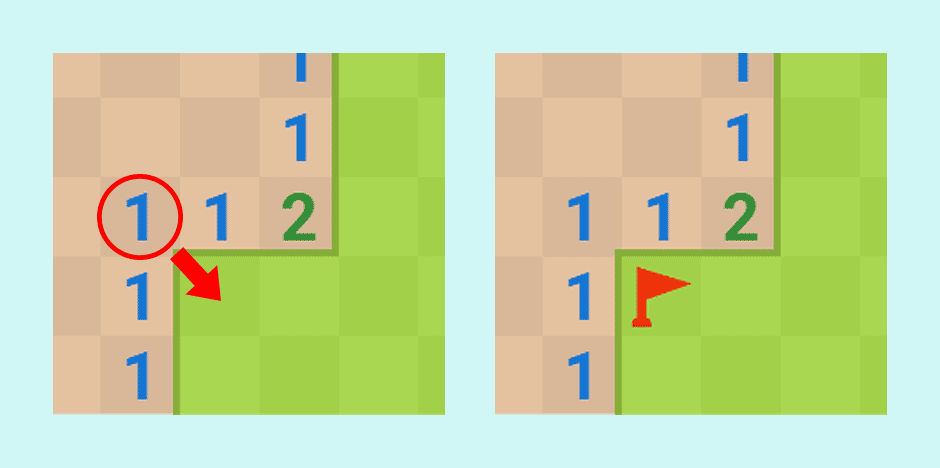
As shown in the image above, the tile marked with a red circle shows a 1, meaning there is 1 mine in the surrounding tiles. Following the red arrow, there is only one unrevealed tile next to it, so that tile must be the mine and can be safely flagged.
Sound tip: With sound enabled, Google Minesweeper plays slightly different tones when you uncover numbered tiles. Higher numbers produce a distinct sound, which some experienced players use as an extra cue alongside the visual clues.
What Happens When You Use the Middle Click?
Once you’ve placed the correct number of flags around a number, clicking that number with the middle mouse button uncovers all the remaining surrounding tiles. This shortcut, commonly called chording or chord-clicking, helps speed up the game and is especially useful for clearing large areas quickly. Just make sure your flag placements are accurate or you’ll lose the game.
Mobile Note: This middle-click feature is not available on touchscreen but careful flagging and tapping make up for it.
Tips to Get Better at Google Minesweeper
Want to boost your score or solve the board faster? Here are some solid strategies:
- Start in the middle: Avoid corners on your first click. Clicking near the center usually reveals more tiles and gives you more information to work with
- Flag only when needed: You don’t always need to flag every mine. Sometimes it’s faster to remember where they are and keep playing, especially on easier boards
- Use the middle click (desktop): Learn to chord-click to clear 3×3 areas quickly once flags are in place. This saves a lot of time
- Stay focused: One mistake ends the game. Take your time, especially on harder boards
- Clear safe areas first: Always play moves that are 100% safe before guessing. Clearing obvious tiles reduces risk and opens up more information
- Work from numbers, not guesses: If a move isn’t logically guaranteed, skip it and look elsewhere on the board. There is often a safer option available
- Use the edges to your advantage: Edges and corners have fewer surrounding tiles, which makes the numbers easier to read and the logic clearer
- Don’t rush early, speed up later: Early decisions matter more than speed. Once the board is mostly solved, you can play faster with much lower risk
- Take breaks on hard boards: If you feel stuck or rushed, pause for a moment. A fresh look often reveals a safe move you missed
Feeling ready to tackle the board? Open Google Minesweeper, pick a difficulty and see how fast and safely you can uncover every tile. Whether you’re flagging like a pro or just playing for fun, it’s the ultimate test of logic, pattern recognition and staying cool under pressure.